

If you are new to Revit, you have probably wondered where to find the default library to use in your projects.
And honestly… you are not the only one. This is a common question among beginners and even among people who have been using the software for years.
If you are not familiar with it yet , the default library is basically the built-in set of families that comes installed with Revit.
Sometimes, it can be a little hidden, and you need to follow specific paths before the folder shows up. Not everyone knows how to do that, but now you will.
In this article, you will learn exactly where to find the default library in Revit, with two detailed methods.
Ready to get started? Let ‘s go!
What is the Revit default library?
Before learning where to find the default library in Revit, it is important to understand what it actually is.
The default library is simply a set of families that Autodesk provides with the software.
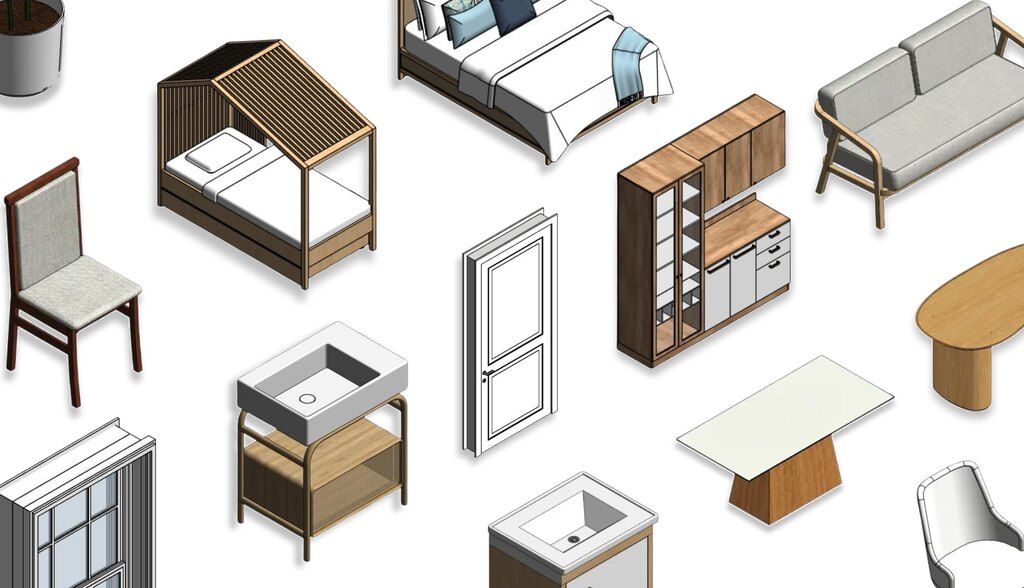
We are talking about doors, windows, basic furniture, plumbing fixtures, electrical components, structural elements, and more. In short, it is a collection of ready-to-use elements for your projects.
These files use the .rfa extension and are known as “parametric families.” The biggest advantage is that each family includes editable parameters, such as dimensions, materials, and technical properties.
In other words, you can adapt each element to your project’s needs without having to model everything from scratch. Think about how much time that can save in your day-to-day workflow.
It is worth noting that, starting with Revit 2021.1, Autodesk also introduced the “Load Autodesk Family” command, which lets you access families directly from the cloud, on demand, without having to download everything locally.
Even so, many users still prefer to keep the files installed on their computer. That is exactly why knowing where to find the default library in Revit is so important.

Bárbara Pavanello
CEO | Blocks®
Before searching through your computer, check one simple thing: go to File > Options > File Locations and see if the library path is filled in. If it’s empty or pointing to a folder that doesn’t exist, Revit simply doesn’t know where to look. Write down that path as soon as you find it. When you upgrade versions or reformat your computer, that information saves a lot of time. That said, the default library covers the basics but is generic by nature. It doesn’t include fixtures from local manufacturers, furniture with real specifications, or finishes with accurate textures. For projects that require that level of precision, the fastest solution is the Blocks plugin, which brings all of that already curated, parametrized, and ready to insert into your project in just a few clicks.
Why can’t I find the default object library in my software?
If you opened Revit, tried to load a family, and the program did not show anything, don’t worry. There is a solution.
There are a few common reasons why the library may not appear automatically.
The first reason is how Revit was installed. In some custom installations, the user may have unchecked the option to download the default content, which means the software is installed without the default library.
Another possibility is the version of the software. Depending on the version you are using, Revit may be configured to pull families directly from the cloud instead of storing them on your hard drive.
There is also the classic case of the hidden folder. The folder where the default library is stored, called ProgramData, is hidden by default in Windows.
If you have not enabled hidden items, the system simply “hides” that folder from you. Then it may look like the content disappeared, but it is actually there, waiting for you to find it.
Finally, updates or version migrations can change file paths, leaving Revit unable to locate the correct folder.
Where to find the default library in Revit: step-by-step guide
Now, let’s get into the practical steps. There are two main ways to solve this issue.
We will show you both so you can choose the option that best fits your workflow.
Each one has its advantages, and neither requires advanced computer knowledge.
Method 1: Locating the folder from inside Revit
This is the fastest and safest method because it helps you avoid accidentally changing system files.
It is also the method recommended by Autodesk in its official documentation. Here is how to do it:
- Open Revit’s settings:: open Revit and click the “File” menu in the upper-left corner. Then click “Options.” A window will open with several categories on the left side.
- Open the file locations settings: in the Options window, look for the “File Locations” tab. There, you will see a button called “Places…” Click it to open the screen where all library paths configured in your Revit are listed.
- Copy the default library path: with that screen open, you will see the name of the default library and, next to it, the full folder path. Select that path, copy it, and paste it into Windows File Explorer. That’s it! You have just found the default library in Revit without even leaving the program.
Method 2: Navigating manually through your computer
If, for any reason, the previous method did not work, for example, if the path inside Revit is empty or points to a folder that does not exist, you can search manually in Windows. Here’s how:
- Access the main system drive: open File Explorer using the Windows + E shortcut and click “This PC.” Then open the main drive, usually the C: drive, where the operating system is installed.
- Enable hidden folders: as mentioned earlier, the library folder is hidden. To display it, go to the “View” tab at the top of File Explorer, click “Show,” and select “Hidden items.” From that point on, all hidden folders will become visible.
- Navigate through the system and Autodesk folders: still inside the C: drive, open the ProgramData folder, which is now visible. Inside it, look for the Autodesk folder. Think of it as the “closet” where Autodesk stores content for all its software installed on your computer.
- Select your exact Revit version: inside the Autodesk folder, you will see several subfolders related to each installed product and version. Look for something like RVT 2027, where the year changes according to your version, or the corresponding version of your Revit installation. It is important to open the correct folder because each version has its own families.
- Open the library folder: inside your version folder, locate the subfolder called Libraries. This is where all default families are stored, organized by category and language. According to Autodesk’s official documentation, the full path is usually C:\ProgramData\Autodesk<product> <version>\Libraries.
Now you know exactly where to find the default library in Revit using both methods.
Save this path somewhere safe because it will be useful in several moments of your workflow.
Where can I buy additional libraries for Revit?
Knowing where to find the default library in Revit is the first step, but let’s be honest: the built-in library, although useful, is generic.
When you need a fixture from a specific brand , a piece of furniture from a particular manufacturer , or a specific product with specific technical requirements, you will rarely find all of that there.
This is a long-standing issue in the market. A study published by USP’s Gestão & Tecnologia de Projetos journal points to a recurring challenge in BIM adoption: the limited availability of products in these libraries. In practice, this often forces designers to fill that gap on their own.
It is the same old situation: either you model from scratch, or you spend time digging through forums for files.
Today, there are several platforms where you can download or buy additional libraries.
For example, manufacturer websites, such as Portobello and Tecno, often provide their own families for free.
There are also international marketplaces, like Blocks, that offer parametric families adapted to real market needs.
Download free parametric families for Revit with Blocks!
Now that you know where to find the default library in Revit and understand its limitations, how about giving your workflow a real upgrade?
Blocks is the plugin that is changing the way architects and engineers work in Revit.
Imagine having thousands of parametric families just a few clicks away, with realistic rendering, project-ready materials, and a curated selection of brands you already know.
No more searching for files one by one online, no broken families, no missing textures, and no wasting hours modeling a sofa that already exists somewhere, ready to use.
Want to try it right now? Download the Blocks plugin for free and see how a complete BIM library can improve your Revit workflow.
Conclusion
Although Revit’s default library is indeed generic, do not underestimate its importance. One day, it may save your project.
Even though there are libraries far more complete than Revit’s default one, knowing how to locate it is one of the fundamentals for architects who are just starting their journey with the software.
See how simple the process is? If you forget, don’t worry. You can come back to this blog as many times as you need to review the step-by-step guide.
And if you want a fully parametric library with international brands, and custom-modeled content, download the Blocks plugin!
Don’t forget to share this content with your friends, and if you want to read more articles, keep following the Blocks blog.