
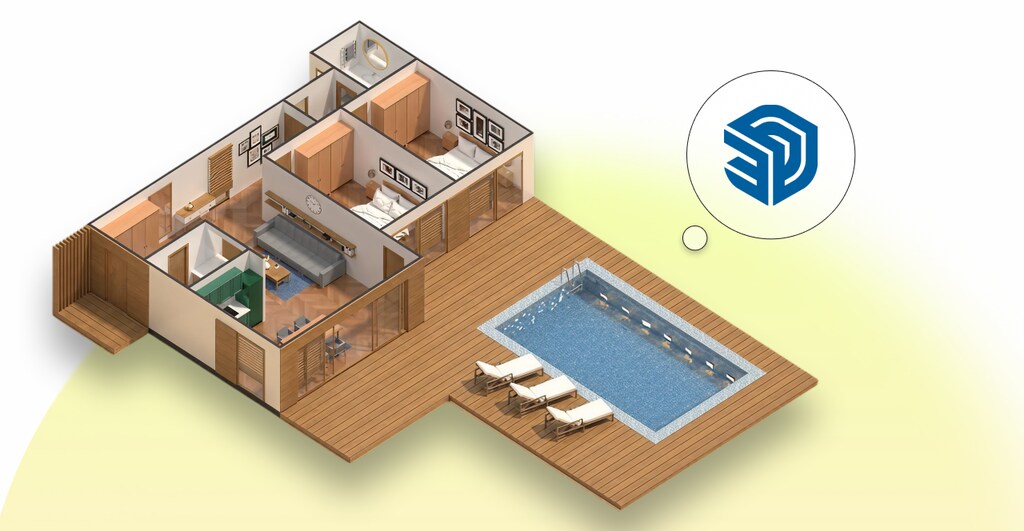
At Blocks, we’re firmly rooted in Revit, but we also recognize that SketchUp is a perennial favorite among architects..
If you’re just getting into the world of 3D modeling, you’ve probably heard of both SketchUp and Revit: two of the most widely used tools in architecture and design.
But do you really know what SketchUp is, what it’s used for, or how it differs from tools like AutoCAD and Revit?
In this article, Blocks will dive into what SketchUp is, trace its history, unpack its core applications and advantages, and, crucially, how it compares to Revit.
By the end, you’ll know which tool fits your workflow and when to choose each for different project types.
Shall we? Let ‘s get started!
What is SketchUp?
Simply put, SketchUp is a 3D modeling software for creating digital objects and environments.
Across architecture, engineering, and design, it’s widely used to build digital models quickly and intuitively.
If you want to bring to life a house, interior, or product idea that is still on paper into a 3D environment, SketchUp is one of the easiest ways to make it happen.
Unlike more complex traditional CAD programs, SketchUp stands out for its approachable interface and overall ease of use.
It’s designed so anyone can pick up the basics quickly and start modeling in 3D, no long courses or advanced software skills required.
That’s why SketchUp caught on among students, independent professionals, and enthusiasts who needed to bring ideas to life visually.
Often used as a kind of “digital 3D sketch,” it lets you test concepts and forms freely on screen.

João Affonso
BIM Analyst | Blocks®
“Although very simple and user-friendly, SketchUp can become a powerful tool for developing projects in a streamlined way, while also offering parametric features that go far beyond the basics. Have you ever heard of SketchUp’s Dynamic Components? These components take modeling to the next level by enabling the creation of intelligent and interactive objects within the model. With them, you can set adjustable dimensions, change materials with just a few clicks, hide or display parts of an object, and even simulate movements — all without leaving SketchUp’s intuitive and highly visual environment. They work like true digital tailor-made elements ‘, adapting perfectly to the space according to the project’s needs.”
What’s the history of SketchUp?

Like many innovative projects, SketchUp was born from a startup in the late 1990s.
It was created by @Last Software in Boulder, Colorado, and released in 2000 with the mission to make 3D modeling easier and more accessible.
The software gained enough traction that Google acquired it in 2006, looking to integrate the technology into its products.
For a few years, Google invested in improvements and new versions of the program.
However, in 2012, SketchUp was acquired by Trimble Navigation (now Trimble Inc.), which has developed it ever since.
Under Trimble, SketchUp kept its focus on simplicity while gaining additional features and tighter integration with professional workflows.
Over the past two decades, SketchUp has evolved without losing its core ease of use.
The secret to its success has always been its short learning curve and the speed with which users can create a convincing 3D model.
While other tools required extensive training, SketchUp allowed beginners to build a basic house model in just a few hours.
Its philosophy of “3D for everyone” helped spread the software worldwide, making it a staple in architecture, interior design, civil engineering, and many other creative industries.
What is SketchUp used for?
Now that we know what SketchUp is and where it came from, what exactly is it used for?
In general, SketchUp lets you model ideas in 3D quickly and without fuss.
It’s an incredibly versatile tool, applied across many industries as well as by hobbyists.
In architecture and urban planning, SketchUp is used to create 3D models of houses, buildings, and master plans.
Architects appreciate how quickly they can build volumes, apply basic materials, and get a sense of spatial composition—which is invaluable in the conceptual stage.
In interior design, the software allows professionals to furnish entire virtual environments, test furniture arrangements, and experiment with combinations of colors and textures in digital models.
Designers also rely heavily on the massive 3D Warehouse library, which provides thousands of ready-to-use objects for their interiors.
Other fields that benefit from SketchUp include landscape architecture, scenography, furniture and product design, and even game and computer graphics.
This diversity shows how flexible SketchUp is, serving everyone from those sketching quick 3D concepts to professionals building detailed models.
What’s the difference between AutoCAD and SketchUp?

It’s common to wonder about the differences between SketchUp and traditional CAD tools like AutoCAD.
After all, both are widely used by architects and designers, but they serve very different purposes.
AutoCAD pioneered computer-aided drafting and stands out for its high precision and strong focus on 2D drawings (though it also supports 3D).
It’s the go-to tool for producing plans, sections, elevations and technical details with strict accuracy and standards—practically the industry benchmark for construction documents..
By contrast, SketchUp changed the game by offering an extremely intuitive, visual platform for fast, simple 3D modeling.
In AutoCAD, everything starts with lines and exact coordinates on a plane. In SketchUp, you start from simple shapes (rectangles, circles) and extrude them into 3D forms with just a few clicks.
In short: AutoCAD excels at detailed technical drawings and documentation, while SketchUp shines in conceptual, visual 3D modeling.
Many companies even use them together: SketchUp to give life to ideas and test volumes in 3D, and AutoCAD to finalize precise 2D drawings.
And what about Revit?
So where does Revit fit into this story? Revit is often mentioned alongside SketchUp, but it belongs to a different category altogether.
Developed by Autodesk, Revit is a complete BIM (Building Information Modeling) platform designed to cover every aspect of a building project—from 3D models to 2D documentation—in one integrated environment.
For example, with Revit you don’t need to combine two tools (like AutoCAD + SketchUp) to create a project. Revit is an all-in-one solution.
That said, in terms of complexity, Revit is more advanced and technical, usually requiring formal training or experience (just like AutoCAD).
The key difference: SketchUp focuses on simplicity and visualization, without embedding as much technical information.
If your goal is to sketch building forms or decorate an interior quickly, SketchUp gets the job done.
If you need to develop a complete construction set, with detailed documentation and multi-discipline coordination, Revit takes the lead.
In summary: SketchUp is great for quick conceptual 3D models and visual studies, while Revit produces detailed, information-rich models ready for execution.
What can you do with SketchUp?
As we’ve seen, SketchUp is highly versatile. But what exactly can you create with it?
Here are five of its main applications and features:
1. Architectural 3D modeling

One of the most popular uses of SketchUp is architectural modeling.
You can quickly build 3D models of houses, buildings, or any structure.
Start by drawing walls from a floor plan (imported or traced on the spot), then push-pull them upward to add volume.
You can carve out door and window openings, create slabs, roofs, and stairs—all visually.
This kind of modeling helps architects and clients alike visualize proportions and scale in context.
Although SketchUp doesn’t auto-generate technical drawings, it’s an excellent tool for digital mockups and conceptual studies.
2. Interior design and decoration
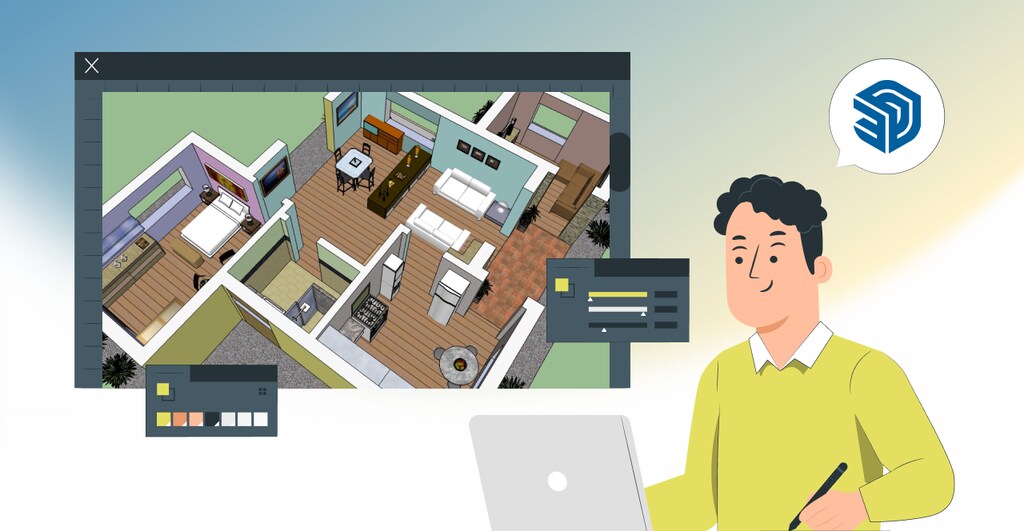
Another major application of SketchUp is interior design.
It includes tools for modeling custom furniture, countertops, cabinetry, and more.
Plus, with access to the 3D Warehouse, users can download thousands of ready-made models—furniture, light fixtures, appliances, décor items—to complete their scenes, similar to the Blocks plugin.
This allows interior designers to build entire 3D spaces, test different layouts, and present clients with a realistic preview of each room.
The big advantage is seeing everything in perspective: wall colors, material combinations, furniture placement relative to windows, and more, which makes decision-making much easier.
3. Landscape and exterior projects
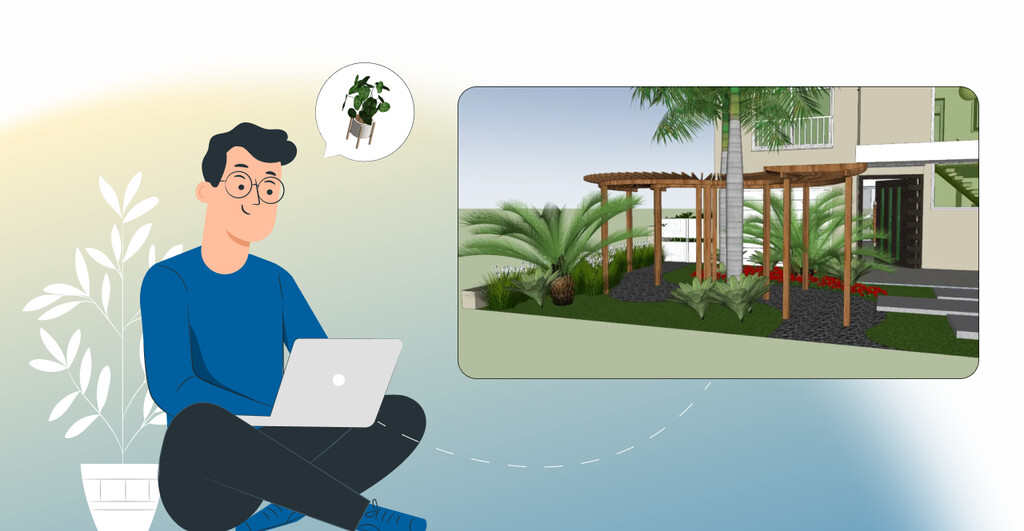
SketchUp is also widely used in landscape design and outdoor projects.
You can model terrain, create slopes, place trees, plants, and natural elements.
The 3D Warehouse also offers ready-made vegetation and urban components to speed up the design of plazas, gardens, and parks.
Urban designers can create massing models of surrounding buildings, plan lots, and visualize site layouts in 3D.
Again, its simple volume manipulation and fast visualization make it ideal for terrain grading, retaining walls, vegetation placement, and similar decisions.
4. Product design and prototyping
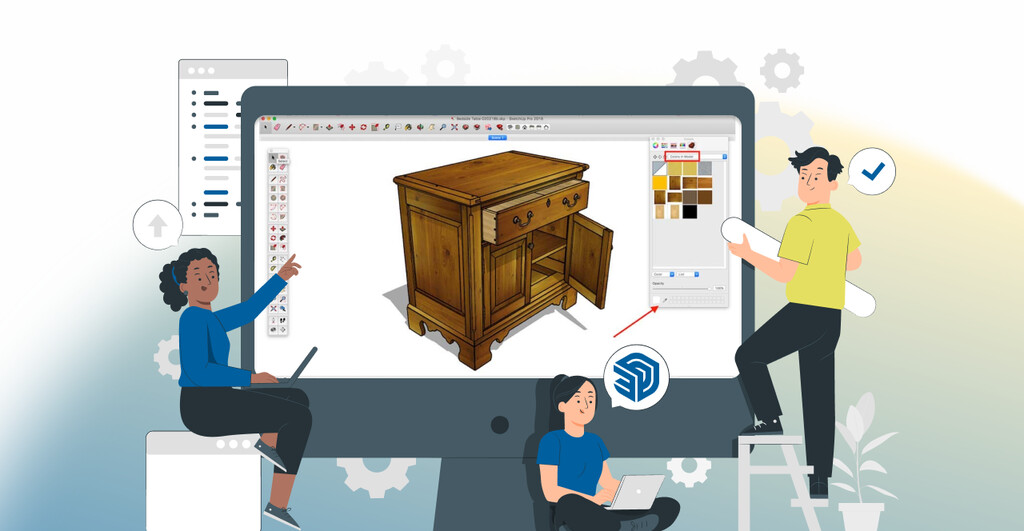
SketchUp isn’t just for buildings—it’s also great for product and furniture design.
Its precision is sufficient to create detailed furniture, simple mechanical parts, prototypes for 3D printing, and more.
Many makers and hobbyists use it to design woodworking projects (a chair, custom cabinetry) or artistic objects.
Because it’s easy to learn, it’s an accessible way to get into the 3D CAD world without jumping straight into industrial-grade tools.
With the help of plugins, you can even export models to 3D printers.
5. Visual presentations and simple rendering
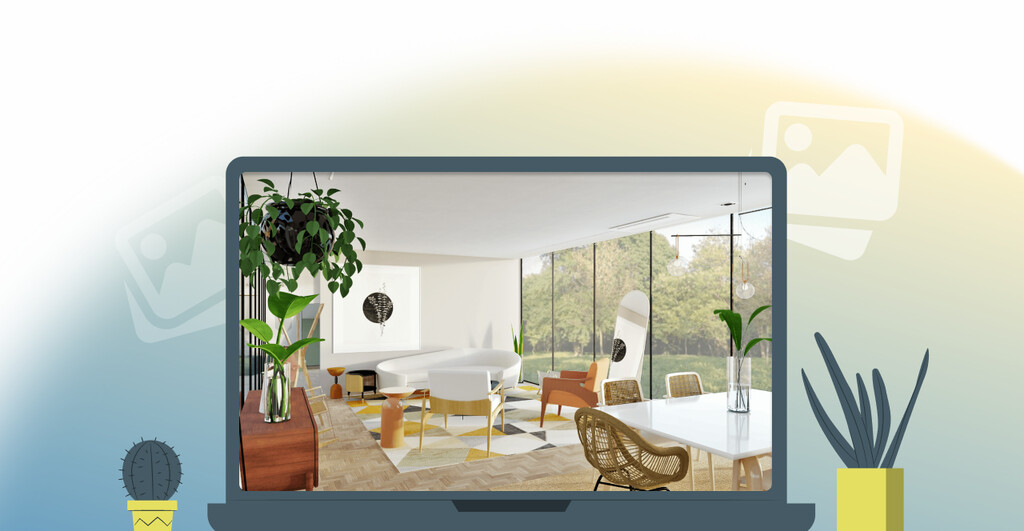
Finally, SketchUp excels at visual presentations.
Beyond modeling, you can create scenes and simple animations—for example, setting up different viewpoints and generating an animated walkthrough.
Its display styles let you toggle between hand-drawn sketch effects, realistic shadow modes, or more technical linework—depending on the look you are after.
And if you want more realism, SketchUp supports rendering plugins like V-Ray, Enscape, and Lumion, among others, so you can turn models into near-photorealistic images.
While SketchUp itself isn’t an advanced renderer, it serves as the perfect base for high-quality visualization.
What versions of SketchUp are available?
Currently, SketchUp comes in two main versions: SketchUp Pro and SketchUp Free.
- SketchUp Pro: The paid professional version, with full features, including 2D documentation integrated with 3D models, sectional views, elevations, and print layouts. Only the Pro license allows commercial use, so professionals and firms should use this version for paid work.
- SketchUp Free: The free version for personal or educational use. It offers essential modeling tools, access to 3D Warehouse, and online extensions. However, it lacks features like LayOut (for detailed sheets) and has limitations on importing/exporting file types. SketchUp Free is not licensed for commercial use.
Regardless of the version, both are excellent tools for architects, interior designers, and engineers to add to their workflows.
Revit or SketchUp: which should you choose?

With so many differences, you may be wondering: Revit or SketchUp—what’s right for me?
The answer depends on your goals and the type of work you do.
If you need a tool to start quickly, visualize ideas in 3D, and learn without difficulty, SketchUp is often the best option.
But if your project requires technical detail, multi-disciplinary collaboration, and integrated documentation, Revit is the better fit.
SketchUp is easier to use and delivers instant results—perfect for beginners or anyone who values speed.
Revit takes more study. Many professionals take specific courses to master its tools.
In short: if you want fast learning and conceptual/visual modeling, go with SketchUp. If you need a complete, professional-grade project tool and are ready to invest in learning it, Revit is the way to go.
Chose Revit? Don’t forget to download the Blocks Plugin!
If you’ve decided that Revit is the right tool for your projects, here’s a valuable tip: supercharge Revit with the Blocks Plugin!
The Blocks Plugin for Revit is an add-in that boosts your productivity inside Autodesk’s software.
It gives you access to a curated, complete library of BIM families (parametric 3D components) directly within Revit—ready to insert into your models.
You’ll find thousands of objects, from furniture to equipment and materials, all optimized for BIM and insertable with a single click.
Need to furnish an entire project in Revit? Skip modeling every piece or hunting for files online—Blocks gives you manufacturer-grade items ready to go.
You’ll even get realistic materials and textures for enhanced rendering results.
Interested? Download the Blocks Plugin for free today
Conclusion
Both SketchUp and Revit have well-defined roles in the worlds of architecture and design. Understanding their differences helps you get the most from each.
SketchUp is excellent for its simplicity and speed, ideal for visualization, early studies, and communicating ideas.
Revit, with its robust BIM approach, is unmatched when it comes to complete documentation, project coordination, and technical accuracy.
The choice between SketchUp and Revit comes down to context: project type, team size, required level of detail, and your familiarity with the tools.
The key is knowing that both options can elevate your workflow.
Enjoyed this content? Keep following the Blocks blog for more!