
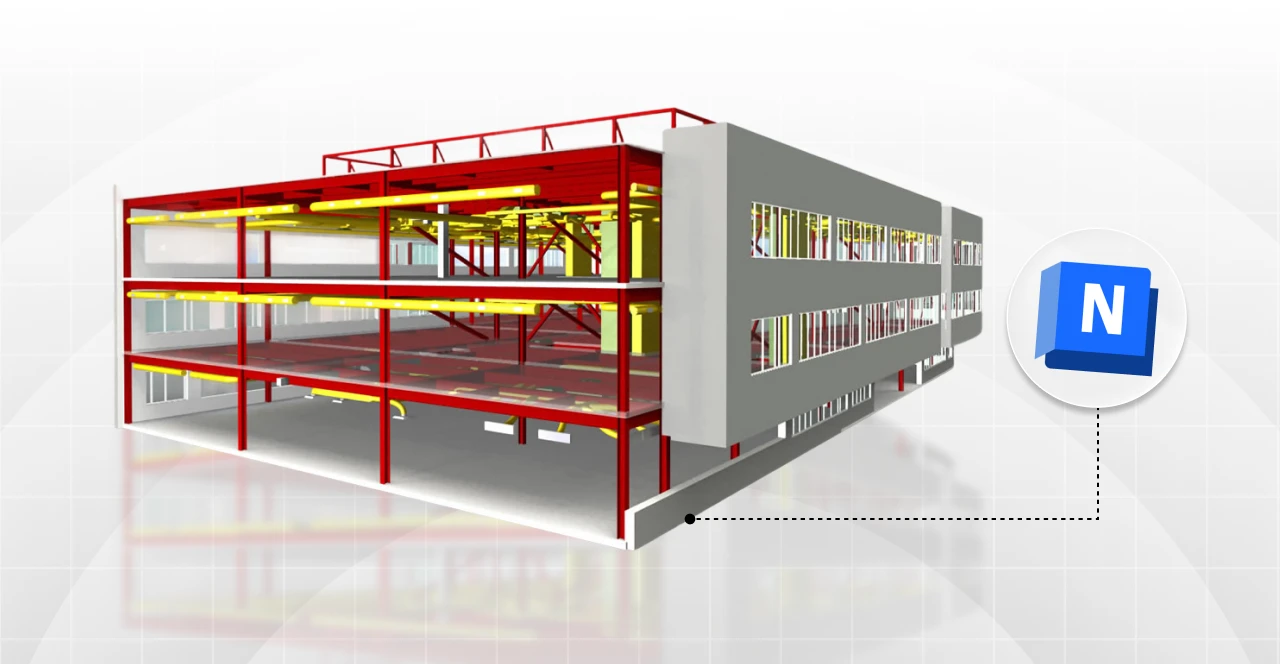
Have you ever imagined being able to integrate every model of a project in one place and spot issues before construction even starts? That’s exactly what Navisworks offers.
Like Revit, Navisworks is a software developed by Autodesk.
Many professionals in the AEC industry (architecture, engineering, and construction) prefer to use Navisworks alongside 3D modeling software.
That’s because Navisworks acts as a central hub for project data, capable of opening models from Revit, AutoCAD, IFC, and several other formats.
In this article by Blocks, you’ll learn everything about Navisworks and why it’s such a valuable addition to your BIM workflow.
Let’s dive in! Enjoy the read!
What is Navisworks?
To start, let’s look at what Navisworks actually is.
Navisworks, or simply “Navis”, as many professionals call it, is a BIM coordination and project management tool developed by Autodesk®.
It lets users bring together 3D models from multiple sources, such as Revit, AutoCAD, IFC, and others.
While most modeling software is used to develop each discipline separately, Navisworks steps in to consolidate all those disciplines in one place.
For instance, in a single federated model, you can view the architecture, structure, and MEP systems of a building and quickly identify potential clashes between them.
But Navisworks isn’t just about visualization: it also provides analysis tools, clash detection, and construction simulation.
In short, it allows you to see the entire project as a unified whole, not just its individual parts.

Bábara Pavanello
CEO | Blocks®
“I recommend exploring Navisworks before purchasing it. Start by downloading Navisworks Freedom (the free version) and open a sample NWD file to show your team how useful the software can be for construction coordination. Once your team understands the value, test the Navisworks Manage trial for 30 days, it includes clash detection and other tools that help prevent rework before construction even begins. And if you’re a student or educator, don’t forget Autodesk offers one year of free educational access.”
How does Navisworks work?
At its core, Navisworks revolves around integrating information from different project disciplines.
Within Navisworks, different professionals create models using their preferred software, such as Revit, and bring them into Navisworks to review and coordinate all project data.
In practice, an architect might import models from different disciplines, such as an architectural project modeled in Revit, a structural model from Tekla, and an MEP model in IFC format, and Navisworks aggregates and analyzes all these files in one place.
With the integrated model open, the software provides powerful 3D navigation tools, allowing you to orbit, zoom, and walk through the model.
You can inspect element properties, create cross-sections, and generate custom views to uncover hidden details.
However, the real strength lies in the analysis capabilities, especially Clash Detection, which automatically identifies conflicts between disciplines,like an air duct running through a structural beam.
You might be thinking, “But Revit can do that too!”
The difference is that Navisworks performs cross-platform coordination, analyzing multiple file types simultaneously (not just RVT files).
In short, it’s a centralized platform for collaboration, designed to combine and analyze data from different disciplines and software.
What is Navisworks used for?

Navisworks is primarily used to enhance AEC projects during coordination, scheduling, and cost estimation.
It plays a key role across the BIM 3D, 4D, and 5D dimensions, which represent coordination, time planning, and budget management respectively.
If you’d like to explore the concept of BIM dimensions in depth, check out our article on the Blocks blog!
Coordination (BIM 3D)
BIM 3D focuses on the three-dimensional coordination of architectural, structural, and MEP models.
Here, Navisworks truly shines with its 3D navigation and Clash Detection tools.
By merging all project data into a single federated model, users can identify and resolve conflicts quickly and efficiently with just a few clicks.
Planning (BIM 4D)
The BIM 4D adds the element of time to the process, allowing users to visualize how construction will progress before a single wall is built.
The TimeLiner feature in Navisworks connects model components to construction schedule activities.
For example, you can link columns and beams with concrete pours, or walls to masonry tasks, and so on.
Once everything is linked, Navisworks generates a 4D simulation, a time-lapse visualization that shows how the project will be built according to plan.
In other words, Navisworks 4D brings your construction schedule to life.
Cost Management (BIM 5D)
The BIM 5D dimension adds the cost and quantity control to the workflow.
Navisworks functions as an estimation and quantification tool, helping cost managers and project planners maintain accurate budgets.
Using its quantification module, you can generate material takeoffs directly from the model.
For example, total cubic yards of concrete, linear feet of piping, or number of doors in a project.
For both students and professionals, BIM 5D in Navisworks provides a far more realistic and data-driven approach to cost management.
After all, even the most beautiful design won’t succeed if it blows the budget, right?
Navisworks Versions
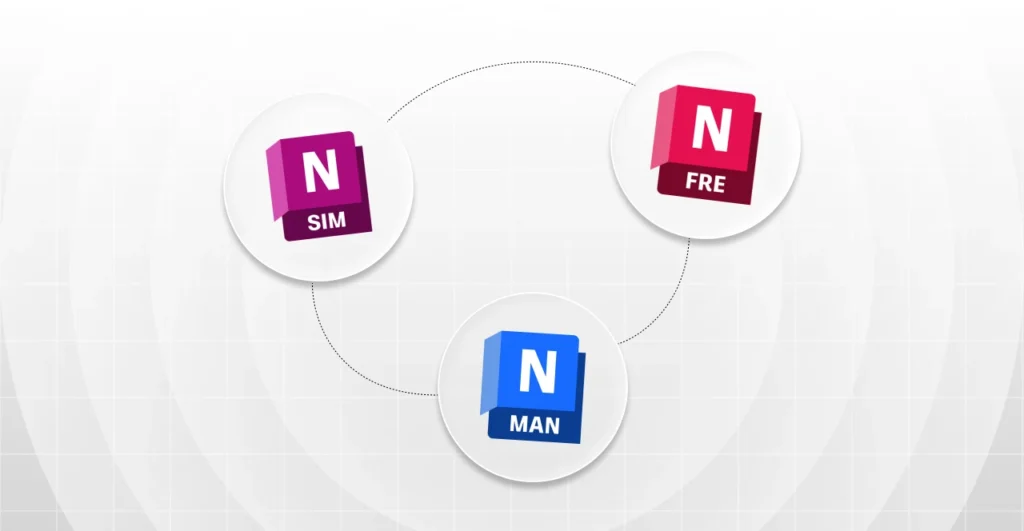
Now that you understand how Navisworks works, let’s take a closer look at its different versions, each tailored to specific needs.
Autodesk offers three main editions of Navisworks:
- Navisworks Freedom: the free viewer version that allows anyone to open NWD and DWF files, explore models, and share projects without cost, ideal for clients or team members who don’t have a paid license.
- Navisworks Simulate: the mid-tier paid edition that includes everything from Freedom, plus advanced 4D simulation, animation, and quantification tools. Users can plan project timelines, generate construction simulations, produce renderings, and extract quantities, but it DOES NOT include full Clash Detection.
- Navisworks Manage: the most complete version and the most expensive one, offering everything from Simulate plus a comprehensive Clash Detection module that checks for conflicts across all models. It’s designed for BIM coordinators and large-scale projects that require full control.
Despite their differences, all versions support the same model files. For instance, a coordinator can save aNWD file in Manage, and anyone can open it in Freedom for free.
Want to try it yourself? Visit Autodesk’s official website and download Navisworks for free.
How much does Navisworks cost?
If you only need to view a BIM project that someone shared with you, Navisworks Freedom is more than enough.
But if you want access to advanced features like Clash Detection, you’ll need a paid plan.
Here’s a snapshot of current pricing (based on Autodesk US Store, October 2025):
| Product/Plan | Type | Price (USD) | Notes |
|---|---|---|---|
| Navisworks Simulate | Monthly | $95 | Monthly subscription via Autodesk US Store |
| Navisworks Simulate | Annual | $1,145 | Annual subscription |
| Navisworks Simulate (Flex) | Tokens | $14 for 100 tokens | Typical usage: 4 tokens/day |
| AEC Collection (includes Navisworks Manage) | Monthly | $310 | Includes Revit, AutoCAD, Civil 3D, and more. |
| AEC Collection (includes Navisworks Manage) | Annual | $2,500 | Annual plan |
| Navisworks Freedom (Viewer) | Download | Free | 3D viewer for NWD/NWC files |
| Educational Plan (Students/Educators) | 1 year | Free | Renewable if eligible |
Note: Autodesk frequently updates its pricing, so it’s best to verify the latest details on their website.
If you’re a student, remember that Autodesk offers one year of free educational access, simply register on the official site.
System requirements
Before installing Navisworks, make sure your computer meets the minimum system requirements, as it handles large, data-rich 3D models.
- Operating System: Windows 10 or Windows 11 (64-bit only). Navisworks isn’t available natively for macOS; Autodesk recommends virtualization (e.g., Parallels or VMware).
- Processor (CPU): 3.0 GHz or faster, the higher the frequency, the smoother the navigation and clash detection.
- Storage: At least 15 GB of free space for installation.
- Graphics (GPU): Direct3D/OpenGL compatible (Shader Model 2 or higher). Autodesk maintains a list of certified graphics cards.
- Display: Minimum 1280 × 800; 1920 × 1080 (Full HD) recommended for better clarity when reviewing clashes.
If you’re on Mac, you can run Navisworks using Windows virtualization tools. We’ve already covered how to virtualize Revit on Mac in another article on the Blocks blog.
Looking for free BIM families? Download the Blocks plugin!
You’ve made it this far exploring how powerful Navisworks can be in the BIM process. But what about families that make your Revit projects faster and more realistic?
Here’s a tip you can’t miss: the Blocks Plugin.
If you want to streamline your BIM workflow with over 7,000 parametric Revit families, download our plugin today , it’s completely free.
Just install the extension, open Revit, and start building your next project.
Conclusion
It’s clear that Navisworks is an essential tool for AEC professionals working with BIM.
Architects can’t rely on Revit alone, every discipline involved in a project needs to stay aligned to prevent conflicts.
That’s why Navisworks stands out as such a powerful and integrated solution, even for clients, who can use it to follow project progress in real time.
In short, Navisworks is a comprehensive and data-driven platform that helps professionals visualize, coordinate, and manage construction projects with precision.
And if you’re a student, don’t miss the chance to study this software and get your free educational license, it’s a skill that will truly make your résumé stand out.
Enjoyed this read? Stay tuned for more BIM insights on the Blocks Blog and across our social channels: LinkedIn, Instagram, YouTube, TikTok, and Facebook.