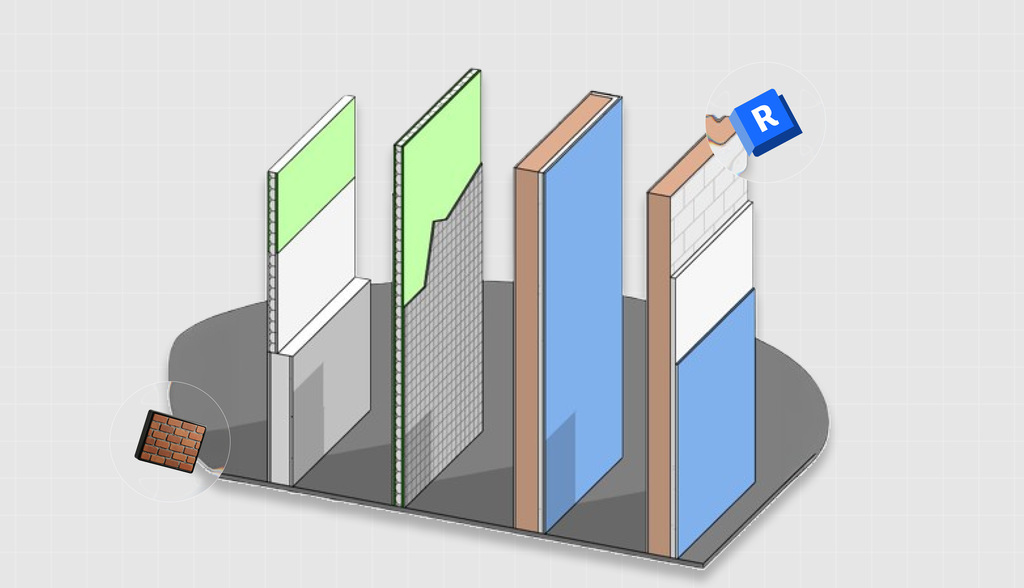










Reducing the size of a wall in Revit may seem simple, but in practice, that question can point to several different needs.
In some cases, the goal is to shorten the wall in plan view. In others, the objective is to reduce the height, make the wall thinner, adjust only a finish layer, or even change only the graphic representation of the line.
In Revit, each of these situations requires a different approach because the software handles geometry, wall assembly, profile, and display through different controls.
So before you start testing commands, it is worth asking a simple question: what exactly do you want to reduce?
In this article, you will learn how to reduce wall size in Revit in different situations. Let ‘s get started.
How to reduce wall size in Revit: step by step
In Revit, small wall edits can have very different impacts on the model.
A simple adjustment can change how the floor plan reads, affect intersections with other elements, and even impact project documentation.
That is why it is important to know the most appropriate workflow for each type of edit. Below, we have gathered clear answers to the most common questions about this process.
1. Reducing wall length in Revit
When the goal of reducing wall size in Revit is to shorten the wall in plan view, the focus is on length, not height or wall composition.
In this case, Revit works with shape handles, temporary dimensions, and wall joins, so the result depends on both the geometry and how that wall is connected to the others.
As mentioned, the software lets you resize elements using shape handles and also work with temporary dimensions during editing. Here is how:
- Open the floor plan, an elevation, or a 3D view.
- Select the wall.
- Go to the end of the wall and use the end drag control (Drag Wall End) to shorten the wall to the new desired point.
- If you need to separate a portion before editing, go to the top ribbon and use Modify > Split Element, click the point where you want to split the wall, and then select only the segment you want to adjust.
- If you want to create an intentional gap between segments, use Modify > Split with Gap, set the value in Joint Gap on the Options Bar that appears when you select the tool, and click the split point.
In day-to-day work, this is one of the most common uses of reducing wall size in Revit. The most important tip here is not to confuse a wall that is too long with a wall that is poorly joined. Sometimes the correct adjustment is at the end; other times, it is at the join.
Note: When you adjust the length of a wall that is joined to another, a message may appear indicating that the walls are joined. To fix this, click Unjoin Elements so you can continue editing the length.
2. Reducing wall height in Revit
If your goal in reducing wall size in Revit is to turn a full-height wall into a low wall, align the top with a finish layout, or simply lower the height of the element, then you need to look at the wall height properties.
- Select the wall.
- In the Properties palette, locate Top Constraint.
- If you want to control the height manually, change Top Constraint to Unconnected.
- Then edit the Unconnected Height field with the new desired height.
- If the wall is attached to another element, such as a roof or floor, first select the wall and go to the Modify tab in the top ribbon, then Walls > Detach Top/Base to remove that relationship.
- Once the wall is detached from the upper or lower element, go back to the Properties palette and adjust Top Constraint and Unconnected Height again as needed.
When someone looks up how to reduce wall size in Revit and wants to edit the height, the most common mistake is trying to edit a field that is unavailable because of the wall’s relationship to another element. So before changing any values, understand the logic behind that instance.
3. Reducing wall thickness in Revit
Another classic way to reduce wall size in Revit is to make the wall thinner.
Here, however, the change is more structural than it may seem. In Revit, thickness is tied to the wall type and its layer assembly.
- Select the wall.
- In the Properties palette, click Edit Type.
- In the Type Properties window, locate the Structure parameter and click Edit.
- In the Edit Assembly window, find and change the thickness of the wall layers as needed. Here, you can also add or remove layers to adjust the wall.
- Click OK to exit Edit Assembly.
- Click OK again to apply the change to the wall type.
In other words, when the goal is to make the wall thinner, the right path is not to “squeeze the line,” but to review the type and the structure of the element.
4. Adjusting only part of the wall
Sometimes, the user wants to reduce wall size in Revit, but does not want to change the entire wall.
What they actually want is to adjust only a ceramic finish band, a finish layer, one section of cladding, or one portion of the outline. This is a very common scenario in interiors and detailing.
4.1. When the adjustment is in the wall outline
- Select the wall in the drawing area.
- On the top ribbon, click Modify | Walls > Edit Profile.
- If you are in plan view, Revit will open the Go to view dialog box so you can choose an elevation or section view that properly displays the wall.
- With the profile shown in magenta lines, use the tools in the Modify and Draw panels to redraw the outline, create cutouts, or open voids.
- When you are done, click Finish Edit Mode.
4.2. When the adjustment is a rectangular opening in part of the wall
- Open an elevation or section view where the wall is accessible.
- Click Architecture > Opening > Wall Opening.
- Select the wall that will host the opening.
- Sketch the rectangular opening.
- Then, if needed, select the opening and use the drag controls to adjust its size and location.
4.3. When the adjustment is only in one finish layer
- Select the wall.
- In the Properties palette, click Edit Type.
- In the Type Properties window, open the preview panel using Preview in the lower-left corner of the window.
- Set the preview to Section to enable the vertical compound structure tools.
- Under Structure, click Edit to open Edit Assembly.
- Use Split Region to divide the layer or region you want to control separately.
- If you need to assign a different finish to the new region, select the layer line and click Assign Layers.
- Click the corresponding region in the preview panel to apply that layer to the desired area.
- Finish by clicking OK.
This point is crucial because many users try to solve a finish issue with overall geometry, or try to solve a geometry issue with layer assembly.
To reduce wall size in Revit accurately, the best choice is the one that changes only what actually needs to be changed.
5. Splitting a wall in Revit to edit only one section
In many projects, the best way to reduce wall size in Revit is to split the wall before editing.
This happens when only one portion needs to change, whether in length, height, or graphic behavior.
5.1. To split the wall at one point
- Click Modify > Split Element.
- Click the wall at the point where you want to split it.
- Revit will turn the wall into independent parts.
- After that, select only the segment you want to edit and make the necessary adjustment.
5.2. To remove a segment between two points
- Click Modify > Split Element.
- On the Options Bar that appears below, check Delete Inner Segment.
- Click a first point on the wall.
- Click a second point.
- The segment between those two points will be removed.
5.3. To split the wall horizontally
- Click Modify > Split Element.
- Move the cursor over the wall near the vertical edges until the temporary horizontal line appears.
- Click to create the horizontal split.
Blocks FAQ: Common questions about reducing wall size in Revit
Even after understanding the main ways to edit a wall in Revit, some questions still tend to come up in practical use.
That happens because small variations in the model, such as attachments, joins, profiles, or wall types, can change how each adjustment works.
Below, we have gathered objective answers to the most common questions about this process.
Can you reduce only one side of the wall?
Yes, as long as you are referring to length and choose the correct end to edit. In practice, this is usually done with the shape handles at the end of the wall. If there is an automatic join with another wall, you may need to disable that join on that side before editing.
How do you change the length without moving the entire wall?
The safest option is to edit the end of the element instead of moving the whole wall. That way, you preserve the main reference and change only the required section. If the wall connection is getting in the way, use the join control or work with split the wall and create a gap.
How do you reduce the height without affecting the roof?
If the wall is attached to the roof, the height logic may not work as a simple parameter. So before trying to reduce the value, check whether the wall is connected or attached at the top. In many cases, the roof relationship is exactly what needs to be reviewed first.
How do you change the thickness without losing doors and windows?
The key is to edit the wall type carefully and then review the behavior of hosted families after the change. In the case of parametric doors and windows, most will adapt to the new thickness, but changes in the assembly may require checking alignment, clearances, and finishes. Since thickness comes from the type and structure, this decision should be made based on the design intent, not just appearance.
How do you reduce only the ceramic finish?
If the finish is part of the wall assembly, the best path is to evaluate the compound structure and wall regions rather than reduce the total height unnecessarily. When the adjustment is localized, you can combine vertical compound structure with profile editing, depending on the case.
Why does the dimension show up but not allow editing?
Because not every visible dimension represents an editable parameter in that context. With walls, this happens often when the height depends on Top Constraint and the value you want to change is not free. There may also be interference from how the element is connected or attached.
When should you use “Edit Profile”?
Use Edit Profile when the wall needs to change shape, not just size. It is the right choice for cutouts, slopes, custom outlines, and nonstandard tops. If all you need is a rectangular void, a wall opening usually works better.
How do you leave a small gap between two walls?
The most direct feature for that is Split with gap, because it was specifically designed to divide the element and define a joint. It is more accurate than trying to drag it visually until it “looks right.”
Is splitting a wall better than creating another one?
It depends on the goal. If you want to edit only one section of an existing wall, splitting usually preserves the model logic better. But if the solution actually represents two different design elements, creating another wall may make more sense. The important thing is for the model to reflect the construction intent.
Conclusion
Understanding how to reduce wall size in Revit is, in practice, understanding which wall dimension is actually in play.
In some cases, the answer is in the length. In others, it is in the height, thickness, assembly, profile, or even in how the element appears in the view.
When you separate those possibilities, Revit stops feeling complicated and starts responding much more logically.
More than memorizing workflows, what really makes a difference is developing sound judgment. This is especially true in BIM, where every edit has not only a visual impact but also an informational one.
Knowing what to change, where to change it, and why to change it is what turns a one-off correction into a more mature modeling process.
To keep learning Revit through practical tips, clear explanations, and content designed for the day-to-day realities of design professionals, follow the Blocks blog.