
If you’re getting started with BIM (Building Information Modeling), chances are you’ve already come across Revit, Autodesk’s® industry-leading software.
Every architect or interior designer knows that 3D modeling software can be resource-intensive, taking up a significant portion of your computer’s storage and system performance.
But did you know Autodesk developed a lighter, more streamlined version of Revit specifically for 3D modeling? It’s called Revit LT.
Revit LT is a more compact, cost-effective version of Revit, with fewer advanced features than the full version.
If this version caught your attention, stay with us. In this article, we’ll explain everything you need to know about Revit LT and help you decide whether it’s the right fit for you.
Let ‘s get started.
What is Revit LT?
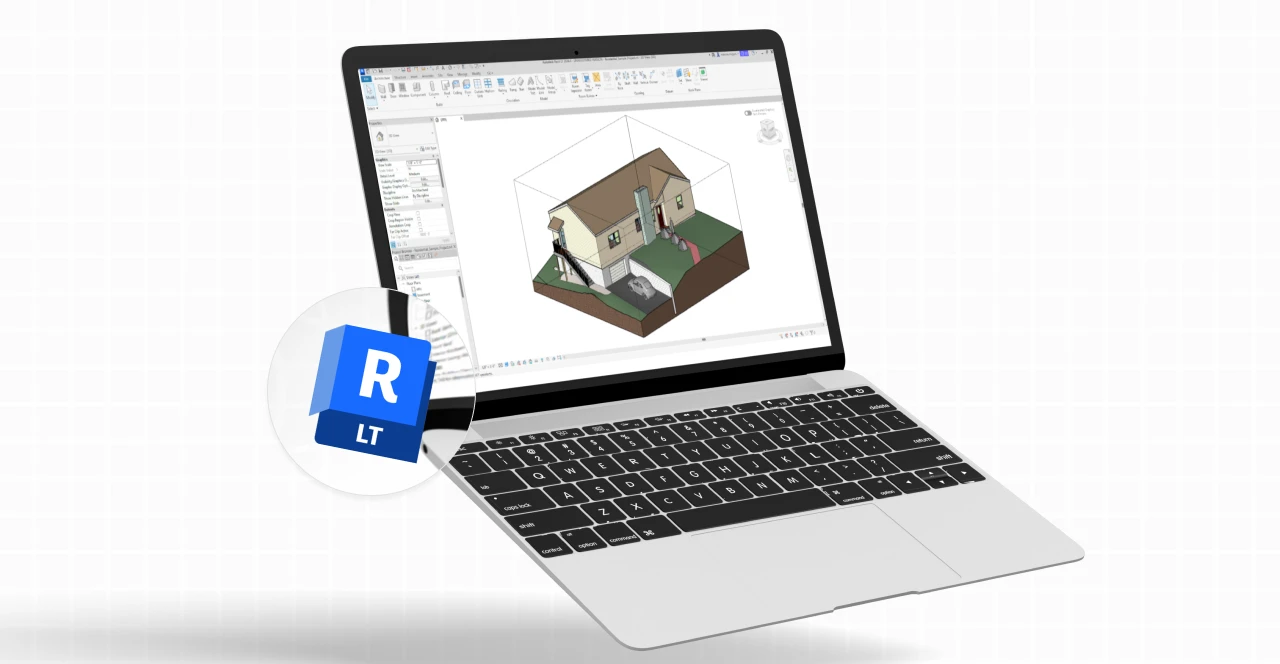
Revit LT is a simplified version of Revit, designed as a more affordable BIM solution for solo professionals, small firms, or users working on less complex projects.
Autodesk describes Revit LT as a BIM solution for self-starters, a reliable daily workhorse for small studios and independent professionals.
Even though it’s a lighter version, Revit LT still delivers one of Revit’s strongest capabilities: project documentation. You can model in 3D and generate full project documentation directly from your model.
If you’d like to learn more about the full version, check out our complete guide:
Read: What is Revit: everything you need to know about one of Autodesk’s most complete software tools
How to download Revit LT
Interested in Revit LT? Let’s walk through how to download it.
1. Choose between the free trial or a subscription
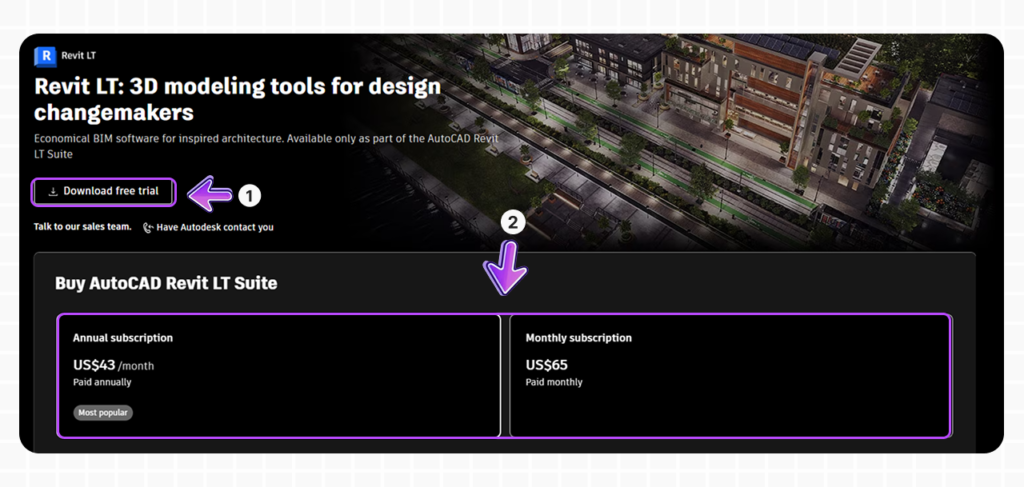
First, visit Autodesk’s official website and choose the Revit LT option that fits your needs: the paid subscription or the trial version.
The free trial is ideal if you want to test the software for 30 days.
Paid subscriptions provide full access without a trial period. Autodesk typically offers monthly and annual plans.
If you’re confident Revit LT is your 3D modeling software of choice, proceed with the subscription and then return here to complete installation.
2. Log in or create an account
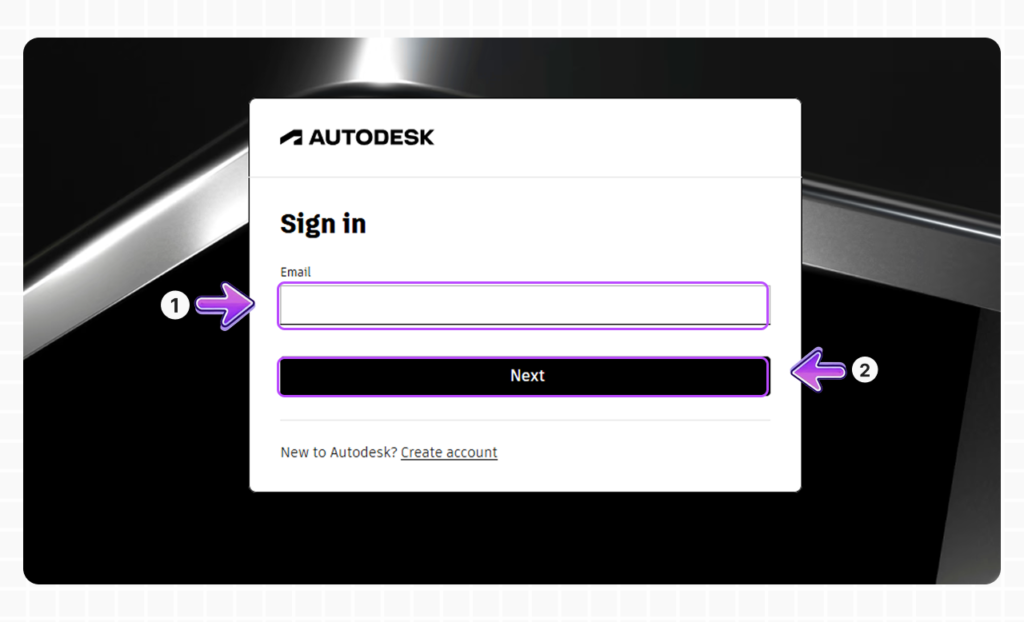
When you choose to download or subscribe, you’ll be prompted to log in.
If you already have an Autodesk account, enter your email and password.
If not, select Create Account, enter your email, and follow Autodesk’s registration steps.
3. (Free trial only) Provide trial information
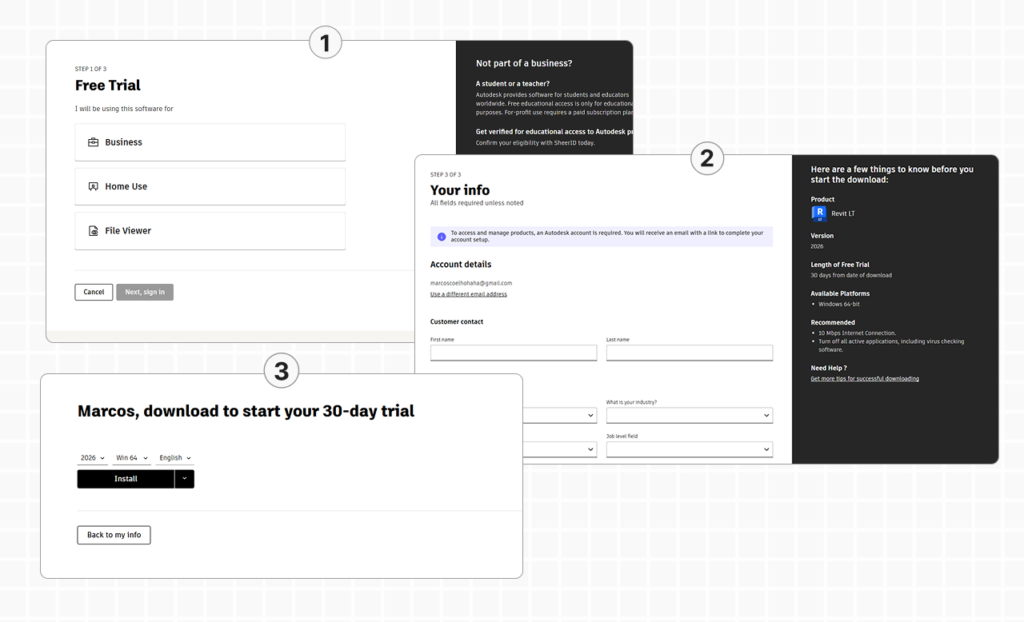
If you subscribed to Revit LT, this step does not apply to you. You can skip to the next step.
If you selected the trial version, continue here. After logging in or creating an account, Autodesk will ask for the reason you’re using the free version of Revit LT.
It’s a simple step, just indicate the purpose of your use, provide some basic personal information, and then proceed with the download.
4. Download and install Revit LT
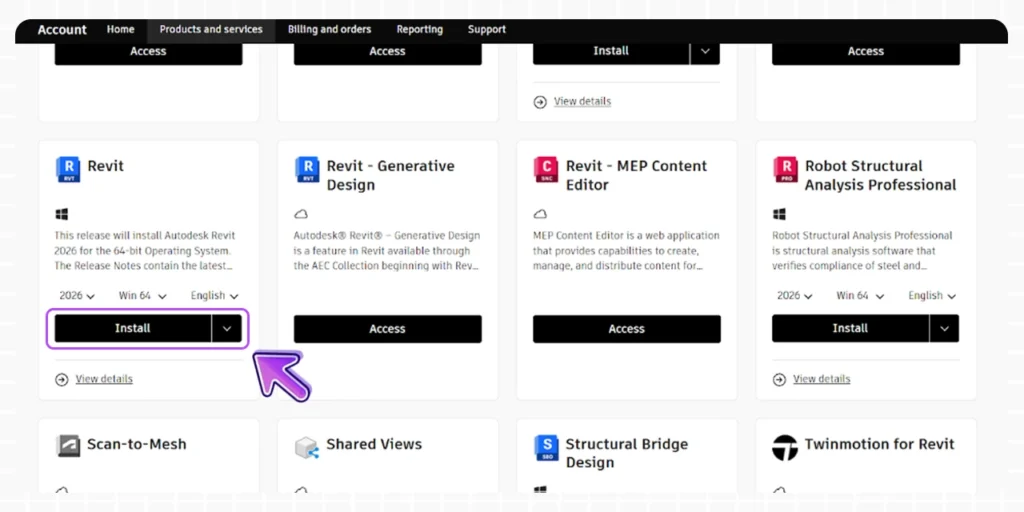
If you subscribed, access your Autodesk account and navigate to your purchased products.
Locate Revit LT in your product list, select your preferred version and operating system, click Install, and accept the terms.
That’s it, Revit LT is ready to install on your computer.
What’s the difference between Revit and Revit LT?
The main difference is straightforward: Revit LT offers streamlined BIM tools for 3D modeling and documentation, with limited advanced features.
The full version of Revit includes advanced collaboration tools, automation, and extended functionality.
Here’s a comparison overview:
| Funciones | Revit | |
|---|---|---|
| Modelado arquitectónico | Sí | Sí |
| Familias + Editor de familias | Sí | Sí |
| Modelado estructural básico | Sí | Sí |
| MEP (instalaciones hidráulicas, eléctricas, HVAC) | Sí | No |
| Worksharing (modelo central multiusuario) | Sí | No |
| Coordinación (Interference Check + Copy/Monitor) | Sí | No |
| Renderizado interno | Sí | No |
| Renderizado en la nube | Sí | Sí |
| Add-ins / plugins externos | Sí | No |
| Dynamo y Macros | Sí | No |
| Tablas y cuantificaciones | Sí | Sí |
| Interoperabilidad (IFC + DWG/DXF) | Sí | Sí |
| Exportación nativa a PDF (2022+) | Sí | Sí |
If Revit LT doesn’t include the features that are essential for your projects, the best option is to invest in the full version of Revit.
Explore the new features of Revit 2026 in this article: Revit 2026: explore new features & essential tools for BIM professionals
How much does Revit LT cost?
On the Autodesk products site for the United States, Revit LT is offered with an annual subscription of approximately $725 USD per year and a monthly subscription of approximately $65 USD. These prices are typically charged in full on a credit card.
There’s also a monthly option at around $65 USD per month for users who need access for only a certain period.
For some professionals, a bundled option makes sense: the AutoCAD Revit LT Suite (Revit LT + AutoCAD LT). In the U.S. market, this bundle typically costs around $850 USD per year, offering good value for architects and designers who need both tools.
However, because prices change with promotions and regional policies, the best practice is to treat these values as references and always check the official Autodesk page before finalizing your purchase.
Revit or Revit LT: which should you choose?
If you’re an architecture or design student, or just getting started with BIM, the most honest question isn’t “Which one is better?” but rather, “Which one fits my workflow?”
Revit LT is often a very sensible choice when you work independently, want to model and document architecture in 3D, need to deliver according to BIM standards, and don’t rely on multiuser collaboration or full Revit MEP capabilities.
Keep in mind: Autodesk itself positions Revit LT with a clear focus on solo professionals and small studios.
The full version of Revit may be the better option when you join a team-based firm, need worksharing (sharing project files across teams) and collaboration, when your projects require building systems as part of the workflow, or when you need to install third-party plugins.
A practical way to decide is to think about your “next step” as a professional. If you need the full capabilities of Revit, subscribe to it. If you’re working on your own, Revit LT may be the right fit.
Using families in Revit LT: does it work?
Good news: Revit LT supports parametric families.
However, Revit LT does not allow third-party add-ins or plugins. That means you cannot install extensions like the Blocks plugin directly.
To use families in Revit LT, you’ll need to download them externally, either from manufacturer websites or from online libraries such as Blocks.
At Blocks, you can download both free and premium families.
With more than 7,000 parametric families available, you can easily enhance your Revit LT projects.
Conclusion
Revit LT is an excellent entry point into the BIM ecosystem for architects and interior designers.
While it doesn’t include every advanced feature of the full version, Revit LT is more than capable of delivering professional 3D modeling and documentation.
Before subscribing, ask yourself: Does Revit LT fit seamlessly into my workflow?
If the answer is yes, move forward confidently and take advantage of everything Revit LT has to offer.
For more content about BIM, Revit, architecture, and interior design, follow the Blocks blog and don’t forget to share this article with your colleagues.