
When you enter the world of architecture, interior design, or engineering and start working with BIM (Building Information Modeling), the very first thing you need is a powerful computer.
Every student or professional in the AEC industry (Architecture, Engineering, and Construction), especially BIM users, knows that not every machine can handle large architectural projects.
Most projects, whether academic or professional, are extremely demanding at every stage — from initial sketches to final rendering.
And when it comes to running BIM software on a laptop, the concern is even greater, since these programs are heavier than traditional tools like AutoCAD or SketchUp.
But don’t worry… In this article, Blocks walks you through the best laptop for Revit available today. That way, you won’t have to stress when working on your BIM projects.
Ready? Enjoy your reading!
Is it worth using a laptop for Revit?
This is a very common question among new Revit users. The answer depends on your laptop, but in general, yes, it’s worth it.
Running Revit on a laptop gives you one huge advantage: portability.
Architects and designers often need to bring their work to school, the office, construction sites, or presentations. In that sense, laptops easily come out ahead because they’re much easier to carry around.
Unlike desktop computers, a powerful laptop allows you to work on Revit anywhere, anytime.
It’s true that desktops usually offer higher performance, but they fail completely in terms of mobility.
And despite some lingering prejudice, laptop processors have evolved drastically in recent years.
Today, you’ll find laptops with CPUs of up to 24 cores and GPUs on par with many desktop models.
In short, if you choose the right model, you’re set. You’ll be able to model complex projects, render in high quality, and run Revit plugins with no trouble.

Bárbara Pavanello
CEO | Blocks®
“If I had to choose a laptop for Revit today, I’d focus on three things first: CPU performance, plenty of memory, and solid cooling. On Windows, look for Intel i7 or i9 H-series, or Ryzen 7 or 9 HS/HX. Go with 32 GB of RAM for medium projects and 64 GB for large models. Use an NVMe SSD of 1 TB or more. For those who render with Enscape, Twinmotion, or Lumion, start with an RTX 4060 and, if possible, move up to a 4070 or 4080. Avoid ultrathin laptops. Creator or gaming lines, which are slightly thicker, maintain stable performance for hours. Revit performs better when the laptop is plugged in. For the display, the sweet spot is 15 to 16 inches, with a 16:10 aspect ratio and QHD 2560×1600 resolution. If possible, connect to a 5K monitor, reading dimensions and fine details improves significantly. At Blocks, we use the Apple Studio Display on Windows. It has a few limitations, but the sharpness makes up for it. As for Macs, it’s only worth it with Intel models using Boot Camp to run Windows natively. On M1 and M2 chips, the only option is Parallels — and in that case, there is a performance loss in Revit.”
What does your computer need to run Revit?
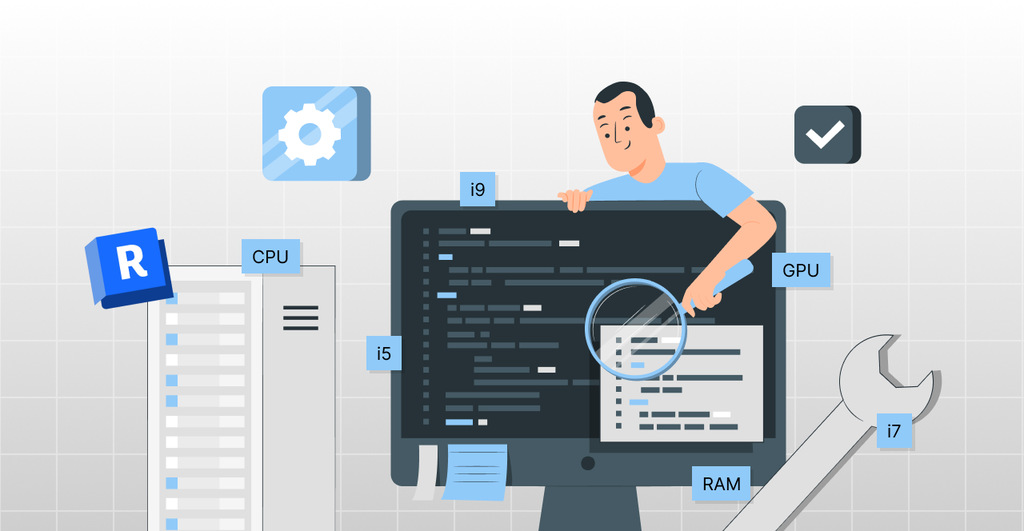
Now that you know it’s worth investing in a computer to run Revit, it’s important to choose a laptop with strong processing power.
Revit’s needs are similar to those of 3D games, meaning you need a balanced combination of CPU, GPU, memory, and fast storage.
Here’s a breakdown of the key components your laptop needs:
- Powerful motherboard and GPU: The motherboard is what connects all components. Choose reliable manufacturers with good build quality and efficient cooling. Also, make sure the laptop includes a dedicated graphics card (GPU). A dedicated GPU is essential for smooth 3D navigation in Revit.
- Modern i5, i7, or i9 processors: Revit uses multiple CPU cores for various tasks, but it relies heavily on single-core speed. Look for recent Intel Core i5, i7, or i9 processors (or AMD Ryzen 5, 7, or 9 equivalents) with high base and turbo clock speeds.
- SSD is non-negotiable: Forget mechanical hard drives (HDDs). SSDs — especially NVMe — are essential for running Revit smoothly. They significantly reduce loading times: in many tests, SSDs cut waiting times from 40 seconds down to just 7–15 seconds.
- Plenty of RAM: Revit works with complex models, which consume a lot of memory. The minimum acceptable today is 16 GB of RAM, but 32 GB or more is ideal, especially if you also use renderers like Enscape, Twinmotion, or Lumion. For very large projects, 16 GB may cause slowdowns.
- If possible, work with a good display: Working in Revit on a tiny 13” or 14” screen is uncomfortable given the level of detail. A larger screen (15.6” or 17” Full HD) or connecting to an external monitor makes a huge difference.
In short: don’t buy a laptop for Revit unless it has a good dedicated GPU, a fast processor, SSD storage, and plenty of RAM.
Revit is heavy, and not every laptop can handle it. Think of a robust machine as an investment in your career.
On our Instagram, we posted a complete guide to ideal Revit desktop PC configurations . Take a look!
Best laptops for Revit in 2025
Now that you know the essential specs, here are some of the best laptops for Revit currently available (2025).
Everyone deserves a decent computer to study and work. So, we’ve divided the options into entry-level, mid-range, and high-end models.
1. Lenovo IdeaPad Gaming 3i
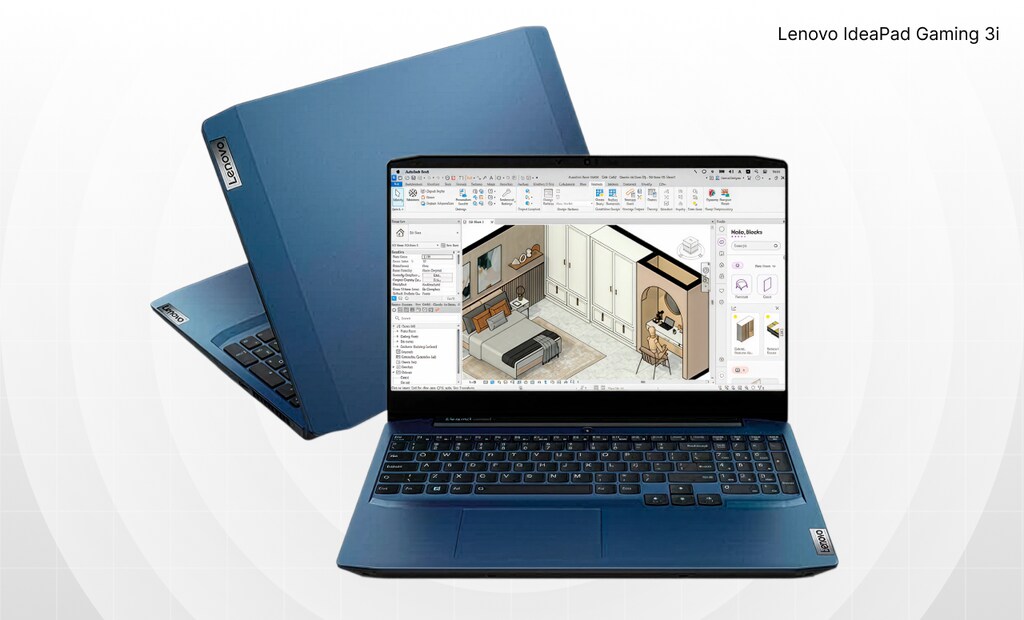
To start our entry-level list, we chose the Lenovo IdeaPad Gaming 3i.
Despite the “Gaming” name, it offers exactly what Revit users need: powerful hardware at an accessible price.
Recent versions include a 12th-gen Intel Core i7 processor (up to 14 cores) and a dedicated NVIDIA GeForce RTX 3050 Ti GPU.
Combined with 16 GB or 32 GB of RAM and a fast SSD, this setup is perfect for small and medium projects.
For entry-level options like the IdeaPad-class laptops, you may find similar hardware internationally priced around US$ 700–US$ 900, depending on configuration.
2. Avell A52 MOB (MOB / ION series)
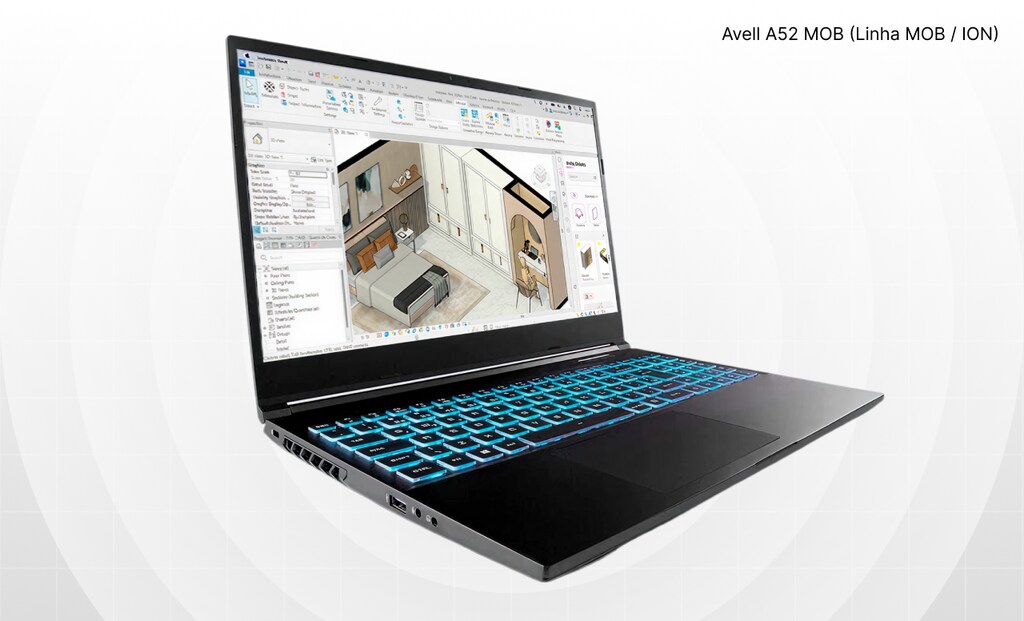
Avell is a Brazilian brand known for its high-performance and customizable laptops, which makes it an excellent choice for Revit users.
The Avell A52 MOB is one of the standout models in the lineup, offering configurations with the latest Intel Core processors (such as the 12th-gen Core i7-12650H) and NVIDIA 3000- or 4000-series GPUs.
One of the available configurations includes an Intel Core i7-12650H, a GeForce RTX 4050 (6 GB), 16 GB of RAM, and a 512 GB NVMe SSD.
Currently, this laptop can be found in the $450 to $880 price range.
3. Dell G15
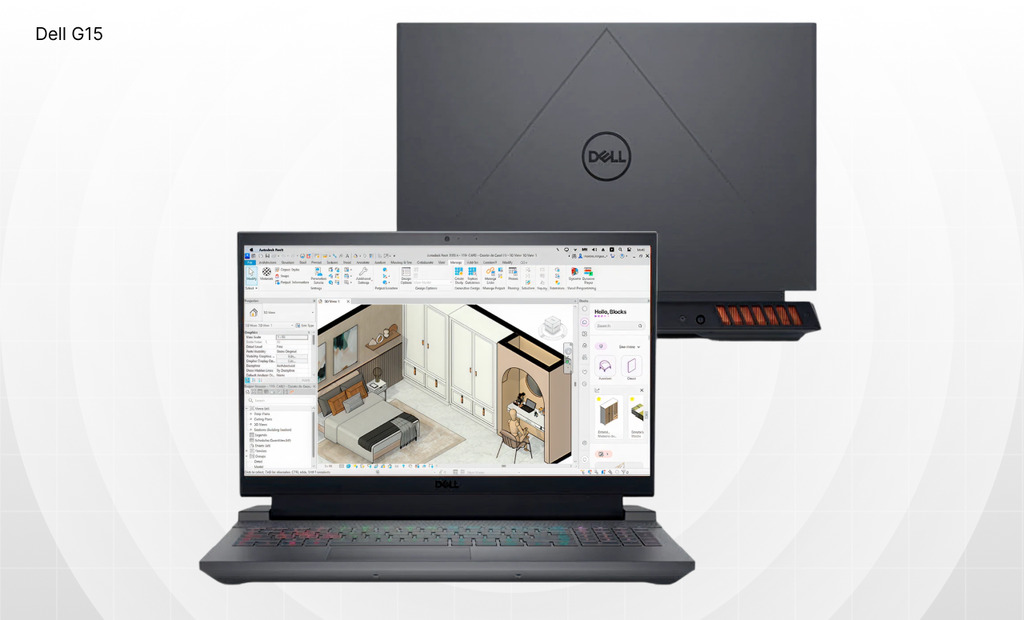
The Dell G15 is already a favorite among students and gamers, and it also shines as a laptop for running Revit.
The G15 series delivers powerful hardware at competitive prices in the mid-range gaming category.
In 2025, the Dell G15 comes with up to an Intel Core i7-13650HX (13th gen), NVIDIA GeForce RTX 4060 GPU, 16 GB or more RAM, and a 1 TB SSD.
With these specs, you’ll run Revit smoothly and still use renderers with no issues.
You can usually find it around $700 to $1.800
4. Lenovo Legion 5i
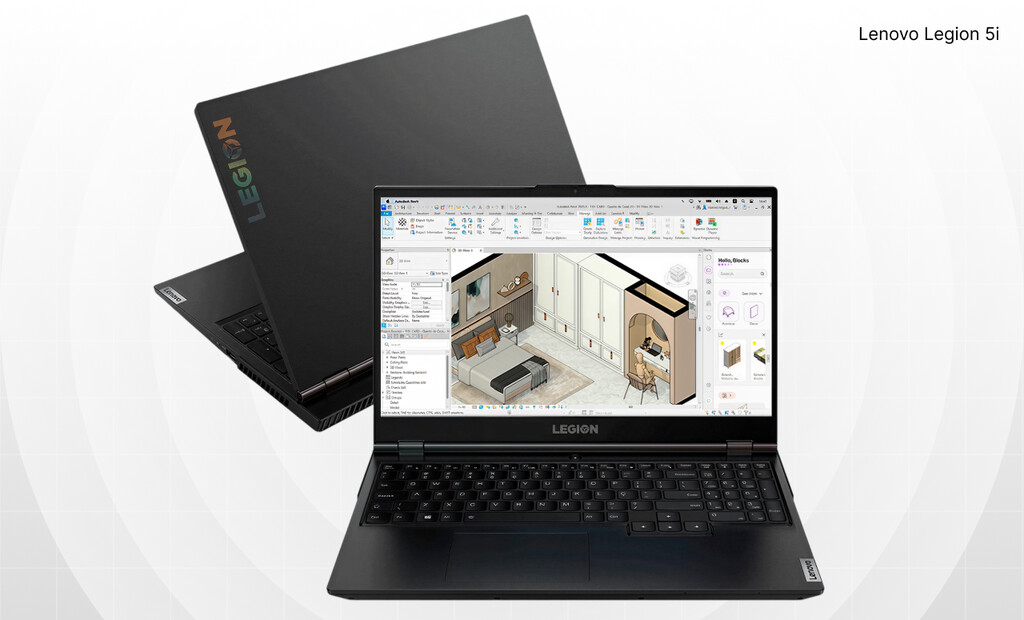
Stepping up in quality, we reach Lenovo’s Legion line, specifically the Lenovo Legion 5i, known for delivering a premium-yet-accessible experience.
This model is a high-performance gaming laptop with a price that remains competitive compared to other notebooks in its category.
For Revit, the Legion 5i performs exceptionally well. It offers balanced configurations such as 13th-gen Intel Core i7 or i9 CPUs, RTX 4000-series GPUs, and a high-resolution display.
Considering its level of performance, the Legion 5i is viewed as an excellent value for its class. It currently sells for around US$ 1,200 in the U.S.
5. Dell Alienware M15 R6
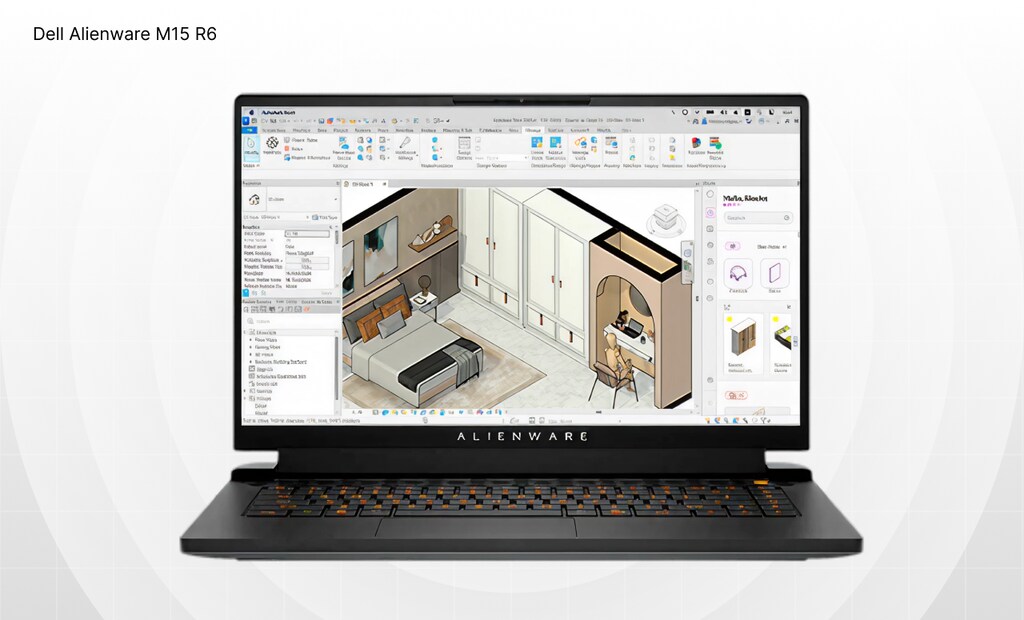
Entering the top-performance category, we can’t leave out the Dell Alienware M15 R6.
Alienware is a high-end line aimed at gamers and professionals, capable of competing directly with powerful desktop machines.
The Alienware M15 R6 can be configured with components such as the 13th-gen Intel Core i7-13650HX and an NVIDIA GeForce RTX 4060 GPU, paired with 32 GB of RAM in its higher-end versions.
Used units typically range from $1.600 to $2.200 online, while brand-new models can reach around 3,000
6. Lenovo ThinkPad P16 Gen 2
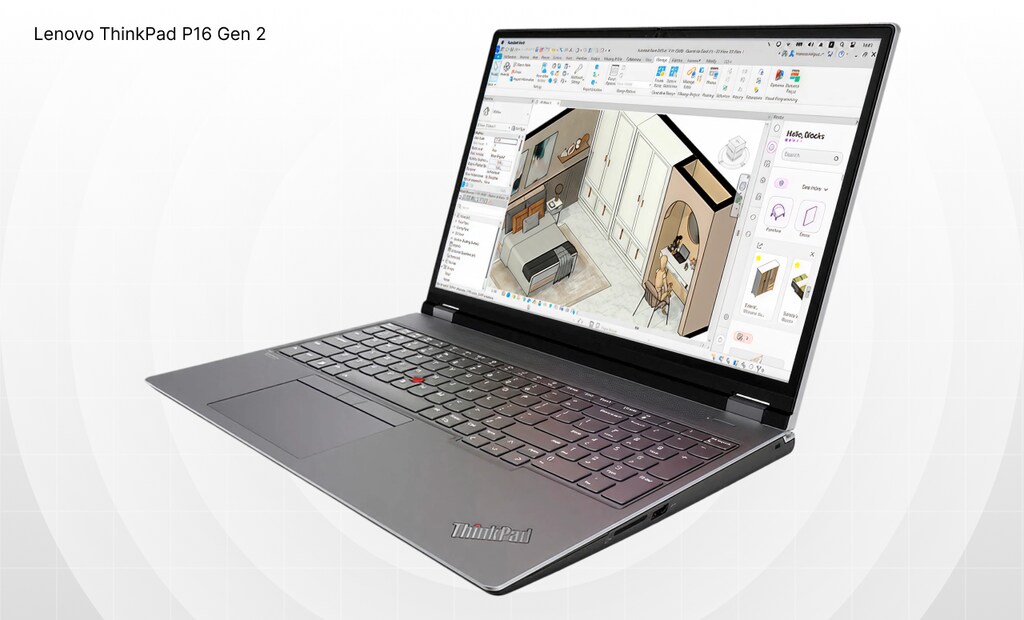
Last but not least, we have the Lenovo ThinkPad P16 Gen 2, a model designed not for gamers, but for AEC professionals.
From the start, the ThinkPad P16 Gen 2 was built for applications like Revit, CAD, BIM, and other high-complexity workloads.
Many users refer to it as a “desktop in laptop form,” since its specifications are impressive enough to rival a full workstation.
This machine supports high-end Intel HX processors from the 13th generation (up to 24 cores and turbo speeds of 5.6 GHz, as in the Core i9-13980HX) and professional NVIDIA Ada-series GPUs.
It also supports up to 192 GB of DDR5 RAM, meaning you’ll rarely face limitations when working on BIM projects.
You’ll find it on the market priced between $1.100 and $2.000. It’s a significant investment, but one that won’t cause you any headaches.
What are the minimum system requirements to run Revit on a laptop?
If you’re not going to buy a laptop that’s suitable for running Revit, below we’ve listed the minimum specifications you need to be able to open it on your machine.
| Component | Minimum for running Revit | Quick notes |
|---|---|---|
| Operating System | Windows 10/11 64-bit | Revit is native to Windows. On Mac, only via virtualization (Parallels), with limitations. |
| Processor (CPU) | Intel Core i-Series/Xeon or AMD Ryzen/Threadripper ≥ 2.5 GHz | High single-core speed helps a lot; multiple cores speed up tasks. |
| Memory (RAM) | 16 GB | For medium/large projects, 32 GB or more is recommended. |
| Graphics Card (GPU) | DirectX 11 compatible, Shader Model 5, 4 GB VRAM | Prefer dedicated GPUs (NVIDIA GeForce RTX / RTX A; AMD Radeon). Keep drivers updated. |
| Storage | 30 GB free | NVMe SSD recommended; ideally 512 GB or more. |
| Display / Resolution | 1920×1080 True Color | Higher resolutions improve productivity. |
| Input devices | MS-Mouse compatible | A 3Dconnexion mouse helps with 3D navigation (optional). |
| Connectivity | Internet needed | Prefer Wi-Fi 6/Ethernet for network projects/BIM 360. |
The worst thing in the life of an architect, engineer, or interior designer is not being able to work on their projects in Revit, since the computer is the foundation of their work.
So, does your computer meet the minimum requirements to run Revit? If the answer is no, it might be time to upgrade some components or buy a new machine.
Is it worth running Revit on macOS?
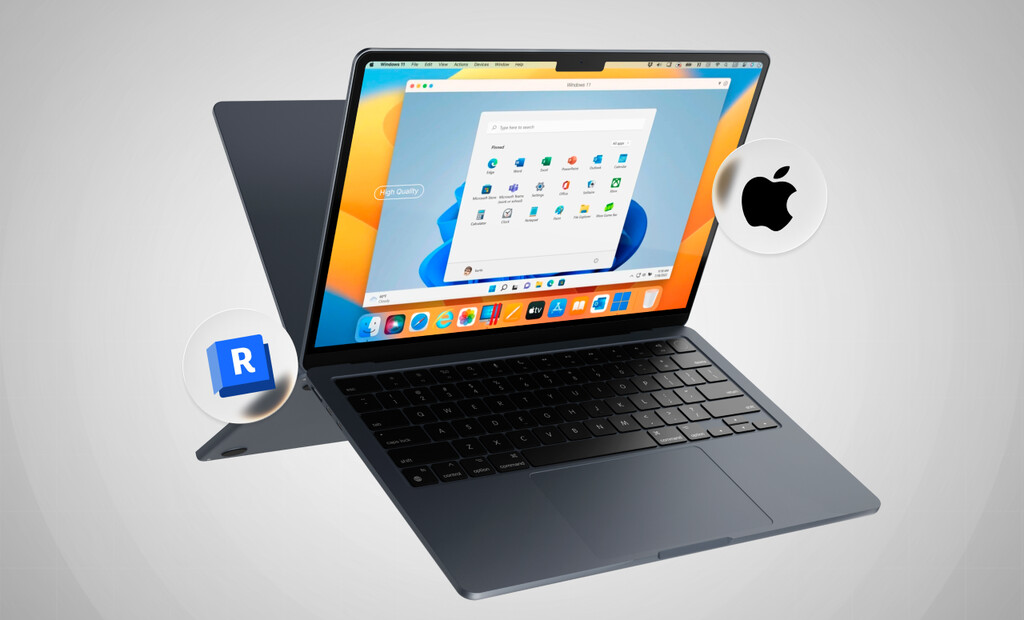
Many professionals in architecture and interior design prefer macOS over Windows for project work, mainly because of its smooth experience and display quality.
However, compared to Windows, macOS is a “limited” operating system when it comes to Revit, since the software cannot run natively on it.
For Revit users, this becomes a major obstacle because running the program on a Mac requires virtualizing Windows.
Virtualizing Windows on a Mac simply means running the Windows operating system through an app called Parallels.
Even with this extra step, there are still people who prefer using a Mac instead of Windows to run Revit.
So, the answer to that question is: it depends.
Would you mind virtualizing Windows through Parallels in order to use the software? If not, then a Mac could be an option. Just keep in mind that performance still won’t be the same as on Windows.
But if you don’t want the hassle of virtualizing Windows, then don’t buy a Mac for running Revit. Choose a Windows laptop instead.
On Windows, besides having an easier experience with Revit, you’ll also have access to all the software’s features without the limitations found on macOS.
Still, if you’re determined to get a Mac for Revit, we prepared a complete guide on how to run the software on macOS. Read it here: Revit for Mac: How to Install It on Your MacBook Step by Step
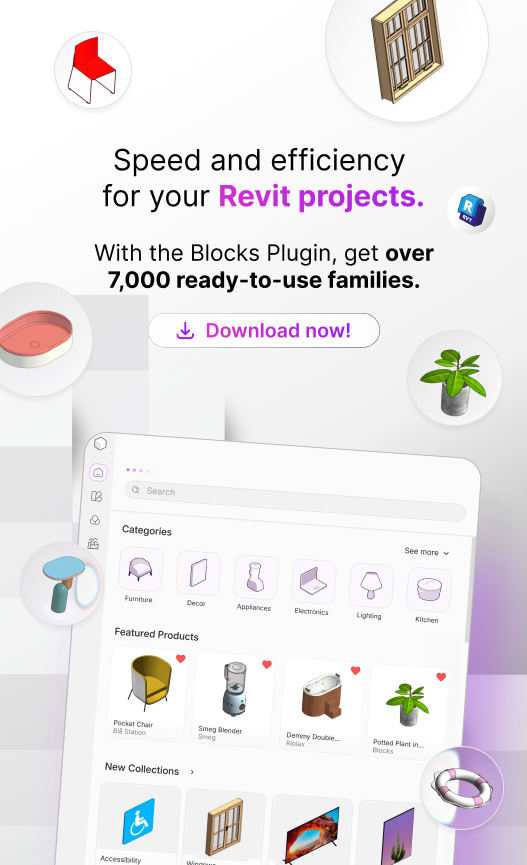
Don’t forget: your laptop needs the Blocks plugin!
A good laptop is essential for any architecture or interior design professional, but staying productive in your daily workflow matters even more.
There’s no point in having a top-of-the-line machine if you’re not working efficiently on your projects.
But did you know there’s a simple way to optimize your workflow? It’s called the Blocks plugin.
With more than 7,000 parametric Revit families, you can populate your projects in just a few clicks.
Download our plugin for free and try the families yourself!
Conclusion
After this guide, you’re ready to choose a laptop that can comfortably handle your Revit projects.
Although we’ve highlighted some of the best options on the market, you don’t need to stick to our list.
Remember the ideal configurations discussed earlier? If a laptop meets those requirements, that’s what truly matters.
You don’t need the most expensive laptop to start modeling in Revit. Start small — you can upgrade later. An entry-level machine can still deliver quality results, even if it takes a bit longer.
Enjoyed this article? For more content about Revit, BIM, and architecture, follow the Blocks blog. And don’t forget to join us on YouTube, LinkedIn, TikTok, and Instagram.